The Home Lab “Black Friday” Upgrade

December 1, 2012 in DCA, vHersey, VMware

I have been running my home lab in Workstation for a good while now and it has served me well especially throughout my VCAP-DCA study. I am starting to do a bit more testing and proof-of-concept stuff with vSphere 5 and VDI so I need a little more. I have decided to invest in a beefy “whitebox” setup with ESXi 5.1 to run AutoLab.

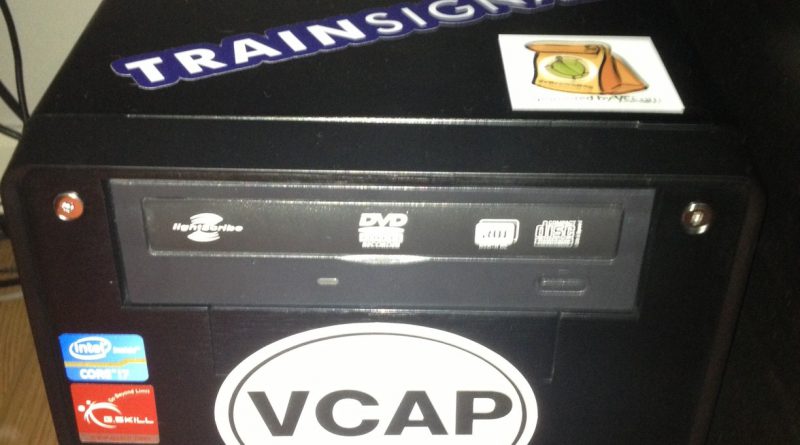
So here is the new parts I put together. I chose the Shuttle SH67H3 barebone system since it supports up to 32GB RAM and the Intel i7. With some “Black Friday” deals at NewEgg.com I was able to put together a system that should work well for under $850.

Here is my new parts lists. The prices shown are the sale prices I paid and shipping was FREE.

Item Cost
Shuttle SH67H3 Intel Core i7/i5/i3 Intel H67 XPC Barebone $239.00
Intel Core i7-2600K Sandy Bridge 3.4GHz Quad-Core Desktop Processor $319.00
G.SKILL Ripjaws Z Series 32GB (4 x 8GB) 240-Pin DDR3 SDRAM Memory $109.00
Crucial M4 CT128M4SSD2 2.5″ MLC Internal Solid State Drive (SSD) $109.00
WD 500GB, 7200RPM, 16MB Cache SATA 6.0Gb/s Hard Drive $69.99

Here is a picture of the new gear after it was unpacked.

Read the rest of this entry →

Autolab Home Lab Build

October 1, 2012 in DCA, vHersey, VMware

Recently I have been doing a lot of upgrading from 5.0 to 5.1 testing in my home lab. There were also quite a few (beta) things I had started and just never got around to finishing. My lab was pretty much a mess, a functional mess, but a mess all the same. So this weekend I decided to nuke it from orbit and rebuild.

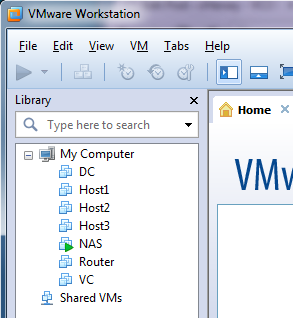
I run my home lab inside VMware Workstation 8 on a ASUS desktop running Windows 7 Home Professional 64bit, with 16 GB RAM, and a few 60 GB SSDs. The lab actually runs pretty well on this setup. In the past the lab has been two ESXi servers, the vCenter virtual appliance, and an OpenFiler VM for IP storage. No DNS, AD, or other extra services, because of this some of my lab projects are somewhat limited. For this rebuild I decided to use Autolab 1.0 – http://www.labguides.com/autolab/.

Autolab is a set VM shells and pre-configure open source VMs that provides a complete VMware lab environment including two ESXi hosts, a Windows vCenter Server, IP Storage (both NFS and SCSI), Active Directory, DNS, TFTP services, and more. Most of the software installations have been automated making it very easy to deploy (or redeploy) your lab environment as needed. This lab environment is very well suited for VCAP5-DCA study.

Since much of the software used cannot be distributed with Autolab (all the VMware and Microsoft stuff) it does take awhile to locate and download all the software necessary. Once you have software and have it placed in build share on the AutoLab FreeNAS VM deploying the lab environment is fairly quick and painless.

Autolab does a really nice job of deploying and then configuring the Windows machines necessary for the lab. The DC VM installation took about 35 minutes in my environment. During this time AD and DNS are set up, a PXE boot server is installed and configures, SQL Express is installed, and the databases for vCenter, VUM, and View are created.

There is a nice validation script that can be run once the DC build is finished to make sure things look good and that all the required software for future automation scripts/builds is in the right places.

Once the DC VM has been deployed the next step is to deploy the vCenter VM. Again this has been nicely automated. Once Windows Server 2008 R2 has been installed vCenter is installed along with VUM, PowerCLI, vCLI, and the vSphere Client. This process took about 35-40 minutes in my environment.

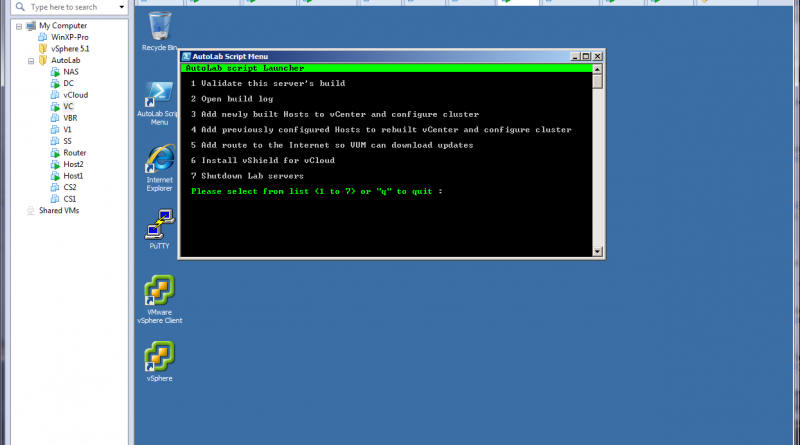
The VC VM has a menu script that contains another Validation, just to check that the environment is good for you to move forward.

The Windows server builds (for both the DC and vCenter) are tedious tasks. This is one of the reasons I did not have them in set up in my lab previously. The Autolab does a very nice job automating the Windows installs. Just kick off the installation and go do something else for a bit, when you come back run the validation script and all should be well. For some more information on the Windows Builds in Autolab check out this post – http://professionalvmware.com/2012/06/autolab-automation-uncovered-windows-builds/

The Autolab 1.0 Deployment Guide is a great reference with all the networking, usernames, and passwords well documented. All the automation scripts are also easy to find. So when automation does go wrong it is easy to figure out what happened, how to fix it, or how to work around it.

I had some trouble with the PowerCLI scripts used to create datacenter, the cluster, and add the new hosts to it but I was able to walk through the scripts and configure this stuff manually. I think this might be due to the fact that I am using PowerCLI 5.1 and vSphere vCLI 5.1. Would be nice to get the automation working but I will mess around with that later.

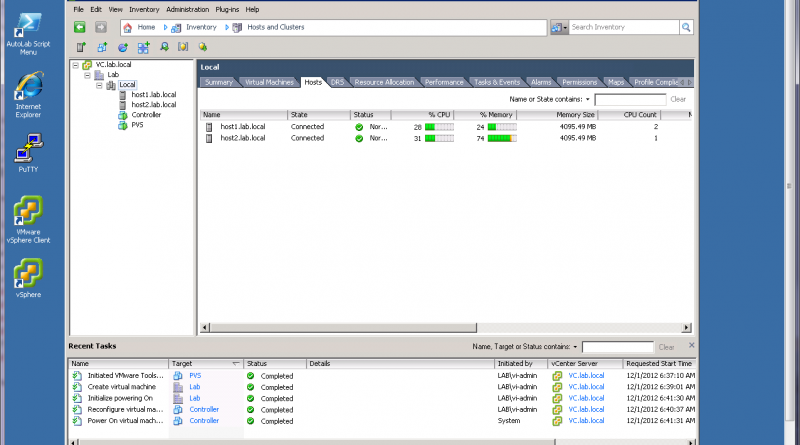
After just a couple hours my home lab was rebuilt and ready to rock.

Waiting for CentOS and vCloud Director to install now. Fun stuff! :)

vBrownBag – VCAP5-DCA Blueprint Objective 1.2 and 1.3

July 27, 2012 in DCA, vHersey, VMware

Earlier this week I presented for the vBrownBag VCAP5-DCA Blueprint Objectives 1.2 and 1.3. The recording of the session can be found here:

Here is the slide rocket deck from the vBrownBag. Even though a lot of the demos for the presentation were done using the vSphere Client the esxcli commands are included for each task in the deck.

A couple weeks ago I presented Objective 1.1 and that presentation and slide deck can be found here.

Lot of folks looking for specific information about the VCAP-DCA exam. Hopefully that means a lot of people are studying for and planning to sit the exam now that it has been publicly released.

Several questions about when you should use the GUI and when you should use the CLI. This is really up to you. Use what you are most familiar with and what accomplishes the tasks in the quickest way possible. Remember that time is really the biggest factor for the VCAP-DCA exam and you are scored on tasks being completed correctly not how (GUI or CLI) you completed the task.

Make sure you know what task need to be done in the CLI. Working through the blueprint will give you a good idea on what can be done in the GUI and what cannot. Setting up SATP claim rules and setting the default PSP can only be done using the CLI (and they must be done on each hosts). Enabling and configuring the SW iSCSI initiator can be done in the GUI or with CLI (my preference is to do this in the GUI). If a task can be completed using either the GUI or the CLI, practice using both methods to get a feel for which one you are more comfortable with – then master the task with that method.

There are several great study guides in listed on the last slide of the deck. Check these out, watch the vBrownBags, work through this great VCAP-DCA Blueprint Study sheet, and you should do fine.

Masking LUN Being Used as HA Heartbeat Datastore

May 2, 2012 in DCA, vHersey, VMware

Last night I was working through a couple of the storage objectives for the VCAP5-DCA. One of the required skills of blueprint Objective 1.1, Implement and Manage Complex Storage Soltuions, is to understand and apply LUN masking. Jason Langer did an excellent write up on Using esxcli to Mask a LUN from ESXi on his site so I won’t repeat the whole process here but I did run into an interesting issue.

If LUN is being used as a Heartbeat Datastore by HA an error will be produced when trying to unclaim the last path to the LUN.

~ # esxcli storage core claiming unclaim -t location -A vmhba33 -C 1 -T 0 -L 8
Unable to perform unclaim. Error message was : Sysinfo error on operation returned status : Busy. Please see the VMkernel log for detailed error information

The Heartbeat Datastore preferences have to be changed so that the LUN is no longer used by HA before you will be able to mask the LUN from the host.

vSphere 5 Network Coredump Collector

April 27, 2012 in DCA, vHersey, VMware

Since Auto Deploy allows for the creation fo diskless/stateless hosts there is a need to have a network service to store core dumps so that diagnostic information can be collected for support in the hopefully unlikely event of a host crash (PSOD). The vCenter Server Virtual Appliance includes the NetDump Service for this purpose. The Dump Collector server can also be installed on a Windows vCenter Server.

Configuring the NetDump coredump collector

NetDump is installed and pre-configured on the vCenter Server Virtual Appliance. The UDP Port and Coredump repository maximum size can be set under Services -> NetDump

If changes are made to the port or repository size ESXi Services will need to be stopped and started.

The status of the NetDump service can be checked under Services -> Status.

Configuring the Host

The ESXi host can be configured to send coredumps to the NetDump coredump collector using esxcli or the configuration can be applied using Host Profiles.

You must specify the vmk interface to use (most likely your management network vmk), the IP address of the server running the NetDump service, and the UDP port number configured for the service.

esxcli system coredump network set –interface-name vmkX –server-ipv4 dumpcollectorIP –server-port 6500

Once the configuration parameters are set the network coredump must be enabled on the ESXi host.

esxcli system coredump network set –enable true

The current configuration of network coredump on the host can be displayed using get.

esxcli system coredump network get
Enable: true
Host VNic: vmkX
Network Server IP: 192.168.1.210
Network Server Port: 6500

If the ESXi host is an Auto Deploy hosts the network coredump will need to be enabled and configured using a Host Profile. Edit the Host Profile applied to Auto Deployed hosts and browse to Network Configurations -> Network Coredump Settings

Now for a test – CRASH!

To test the network coredump the ESXi host will need to be crashed. This article explains how to do this http://www.seancrookston.com/2012/01/09/forcing-a-kernel-dump-on-a-vsphere-host-the-purple-screen-of-death/ (DO NOT DO THIS ON A PRODUCTION HOST!!!)

To crash the host just SSH to the host or enter TSM from DCUI and:
Type vsish
Type set /reliability/crashMe/Panic

The host should PSOD (Purple Screen of Death).

Notice the line Starting network coredump from 192.168.1.205 to 192.168.1.210. The coredump is being transferred from the ESXi host to the NetDump collector. Once the transfer completes the message NetDump: Successful will be displayed.

The zdump file can be found on the vCenter Server Appliance in the /storage/core/netdumps/ip1/ip2/ip3/ip4 where ip1 – 4 are the IP address octets of the crashed host. For the host I crashed the directory was /storage/core/netdumps/192/168/1/205

Here is the VMware KB article on the ESXi Network Dump Collector for vSphere 5 with a lot more information including some network considerations and limitations (vmk cannot be on EtherChannel, LCAP, or vDS) of the NetDump collector.

vSphere Auto Deploy – Host Profiles and Answer Files

April 25, 2012 in DCA, vHersey, VMware

As part of my VCAP5-DCA study yesterday I walked through the process of creating an Image Profile and Booting an ESXi host using VMware Auto Deploy. The new Auto Deployed ESXi host is up and running but now configurations need to be applied to add the necessary network settings, storage configurations, and other settings so the host can become a functioning part of the virtual infrastructure. These configuration applied by using Host Profiles and Answer Files.

Configure the new Host

When the new Auto Deployed host finishes booting it will be added to vCenter inventory as a standalone host. Place the host maintenance mode and configure the host network, storage, NTP, DNS, hostname, syslog server, and any other options necessary for normal operation as you would an ESXi host built from a CD. Do not add the host to a DRS or HA cluster. Once the host configuration is complete a new Host Profile needs to be created from the host.

Creating a Host Profile

In Home -> Management -> Host Profiles choose “Create Profile” and select the new Auto Deploy host as the Reference Host. I named my new Host Profile AutoDeploy.

To add the root password to the Host Profile edit the new profile and browse to Security Configuration -> Administrator password. Select Configure a fixed administrator password in the drop down and type your ESXi root password twice. Click OK to update the Profile.

Update the Host Answer File

The Host Answer File contains host specific information such as hostname, ip addresses, etc. Once the new Host Profile is created attach the Auto Deployed host to the profile. The right click on the host and select “Check Answer File”. The Answer File Status should show Incomplete. Right click on the host again and select “Update Answer File”.

Verify and update all the configuration information in the Answer File. The Answer File Status should now show complete. Select the host and “Check Compliance”. The new Auto Deployed host should be Compliant and the Answer File should be Complete.

Add vmware-fdm to the Image Profile

If the host is going to be part of an HA cluster the vmware-fdm software package needs to be added to the image profile.

First clone the standard image profile.

New-ESXImageProfile -CloneProfile ESXi-5.0.0-20111104001-standard -Name ESXiHAProduction

Add the vmware-fdm software package to the new Image Profile.

Add-ESXSoftwareDepot -DepotUrl http://vcenteripaddress:80/vSphere-HA-depot
Add-ESXSoftwarePackage -ImageProfile ESXiHAProduction -SoftwarePackage vmware-fdm

Delete the Deploy Rule used for the first boot.

Remove-DeployRule -DeployRule ESXiDeployProfile -delete

Create a new Deploy Rule with the new Image Profile, the Host Profile, and the Cluster where the Host will be added. ESXiHAProduction is my Image Profile, DCA is my cluster, AutoDeploy is the Host Profile name that will be applied. Then activate the new Deploy Rule

New-DeployRule -Name ESXiHADeploy -Item ESXiHAProduction,DCA,AutoDeploy -Pattern “ipv4=192.168.1.230-192.168.1.239″
Add-DeployRule ESXiHADeploy

Name        : ESXiHADeploy
PatternList : {ipv4=192.168.1.230-192.168.1.239}
ItemList    : {ESXiHAProduction, DCA, AutoDeploy}

Reboot the Host

Now reboot the Auto Deployed host. When the host reboots it will be added to vCenter inventory in the DCA cluster. The AutoDeploy profile and the host’s Answer File will be applied.

That’s One! Now What?

Other host that match the pattern (ipv4=192.168.1.230-192.168.1.239) that boot using the ESXiHADeploy Deploy Rule will boot with the ESXiHAProduction Image Profile and will be attached to the AutoDeploy Host Profile but the profile will not be applied since an Answer File has not been created for the host. Because of this the new host will also remain in maintenance mode.

Go to Home -> Management -> Host Profiles and right click on the new Auto Deploy host and Update the Answer File. Add the missing information (IP addresses, hostname, etc) and click update.

Reboot the host, it will load the Image Profile, the Host Profile and Answer File will be applied, and it will exit maintenance mode as part of the cluster defined in the Deploy Rule.

vSphere Auto Deploy – Image Profile and Booting ESXi

April 24, 2012 in DCA, vHersey, VMware

The VCAP5-DCA Blueprint has objectives on working with ESXi Image Profiles and configuring VMware Auto Deploy which are both new features that were released with vSphere 5. As part of studying for the VCAP5-DCA beta exam I have been working on becoming more familiar with these features in my home lab. The vSphere Installation and Setup Documentation does a good job walking through the process of preparing a ESXi Software Image and setting up Auto Deploy.

Enable Auto Deploy on vCenter Server Virtual Appliance

If you are running vCenter on a Windows Server you will need to install the Auto Deploy server on that server. If you are running the vCenter Server Appliance Auto Deploy needs to be enabled by logging in to the web management interface and navigating to Services -> Autodeploy.

To use the default port and repository size just click “Test Settings”, then click “Save Settings.” Then you must stop and start the ESXi services from the Services -> Status page. ESXi Autodeploy status should change to “Running”.

Once Auto Deploy is running it can be accessed from the Home menu in the vSphere Client. From here download the TFTP Boot Zip and note the BIOS DHCP File Name.

Set up DHCP and TFTP

I am using this DHCP server running on an XP VM to serve up DHCP for my lab environment. This DHCP server also has a built in TFTP server.

Configure the DHCP scope and add the BIOS DHCP File Name and the TFTP server IP address to the boot file parameter (this is done in the advanced options of the DHCP wizard if you use this DHCP Server). Unzip the Auto Deploy TFTP Boot File into the TFTP server root directory.

ESXi Image Profile

Adding an ESXi Software Image Profile is done using PowerCLI cmdlets. I downloaded the ESXi 5 zipped distribution from VMware.com and placed it in a directory on my C:\ drive.

The zip is then added as a Software Depot using PowerCLI.

Add-ESXSoftwareDepot c:\pathto\ESXi5.zip

Use Get-ESXImageProfile to display the available images in the depot.

Name                           Vendor          Last Modified   Acceptance Level
----                           ------          -------------   ----------------
ESXi-5.0.0-20111104001-stan... VMware, Inc.    10/13/2011 3... PartnerSupported
ESXi-5.0.0-20111104001-no-t... VMware, Inc.    10/13/2011 3... PartnerSupported

Then create a new deploy rule to use the Image Profile you want and apply it based on a host pattern. I am checking that the IP address (ipv4) is within the DHCP range set up for the hosts.

New-DeployRule -Name “ESXiDeployProfile” -Item ESXi-5.0.0-20111104001-standard -Pattern “ipv4=192.168.1.230-192.168.1.239″

The software will unzip and the packages will be uploaded to the Auto Deploy server.

Once the deploy rule is created it has to be activated.

Add-DeployRule -DeployRule ESXiDeployProfile

Auto Deploying ESXi

Since I am running my lab in Workstation I created an ESXi VM with no hard drives and added the necessary NICs for my environment (connections to management, storage, vMotion, and VM networks). The VM boots straight to network boot. The VM receives a DHCP address, the boot file from the TFTP server, and then begins booting from the Auto Deploy repository.

After the initial PXE boot the ESXi VM begins booting ESXi from the Image Profile based on the Deploy Rule.

When the host finishes booting it is added to the vCenter server inventory in maintenance mode.

Now a Host Profile and Answer File will need to be applied to configure the ESXi host for use in the environment. I will cover this in another post in the next couple days… and here it is Auto Deploy: Host Profiles and Answer Files.

vSphere 5 host stops sending syslog messages

October 25, 2011 in DCA, vHersey, VMware

I had some maintenance to do on my central syslog server and the server was down for about 30 minutes or so. When the syslog server was back online it was no longer logging syslog messages from my vSphere hosts. First thing I did was check to see if I was receiving syslog messages from the hosts using tcpdump.

tcpdump -i eth0 -A -s 0 udp port 514 and host ESXiHostIpAddress

Nothing.

I thought maybe something changed with the maintenance/upgrade that caused the issue but a quick search resulted in this vSphere 4.x article in the VMware KB. I did not find anything on this issue in vSphere 5 but the 4.x article pointed me in the right direction.

I checked the logging in the Syslog.global.logDir for the hosts and logging had stopped there also.

To correct this you simply have to reload the ESXi syslog service using esxcli.

esxcli –server HostIpAddress –username UserName –password PassWord system syslog reload

Once syslog is reloaded run tcpdump on the system again and you should see syslog messages from the host. I also verified that syslog messages were being logged to Syslog.global.logDir.

I did some quick testing and if I take the syslog server down even briefly (no more than a minute) I have to reload syslog on each of the hosts before log messages a generated.

All is well now. Just have to remember to reload syslog on the ESXi hosts anytime I take down the syslog server.

Anyone know why this happens or if there is a way to prevent it from happening (other than never taking down the syslog server)?

Creating a Scheduled Tasks to Change VM Resource Settings

September 28, 2011 in DCA, VMware

Let’s say there is a VM, or a Resource Pool with several VMs, that most of the time just sits idle. Every Sunday an application runs on this VM (or on VMs in the Resource Pool) to do some data analysis and generates reports, the process usually takes 2-4 hours. During this this time you want to be able to reserve some CPU and/or memory resources so the VM (or Pool) can complete the process and then you want to be able to return the resources to the environment.

This can be easily automated by creating Scheduled Tasks to add and remove VM resources.

Just open Scheduled Tasks pane from the vSphere Client Home screen and click the icon to add a new tasks.

Read the rest of this entry →

Saving a custom resxtop configuration

July 18, 2011 in DCA, VMware

The resxtop utility can be run from the vSphere Management Assistant (vMA). The resxtop utility is used to monitor CPU, memory, network, and disk utilization of vSphere ESX/i hosts.

There are a many different fields that can be displayed for each resource. When monitoring or troubleshooting a resource it is often helpful to only display necessary fields or to display fields other than the defaults. This is easily done by toggling available fields for a resource on or off and reordering the displayed fields. Once fields for a resource are set up as needed the configuration can then be saved to a file and recalled later when running resxtop.

In this example I want to monitor the I/O stats of the ESXi host’s disk adapters.

To run resxtop: resxtop –server <ESX/i Server Name or IP> –username <ESX/i Username>

I am prompted for the ESX/i password.

By default resxtop starts showing CPU resource utilization for the specified host.

Typing a question mark “?” while running resxtop will display help for the current resource and keys used to switch resources.


Hit any key to exit the help.

Read the rest of this entry →