The Home Lab “Black Friday” Upgrade

December 1, 2012 in DCA, vHersey, VMware

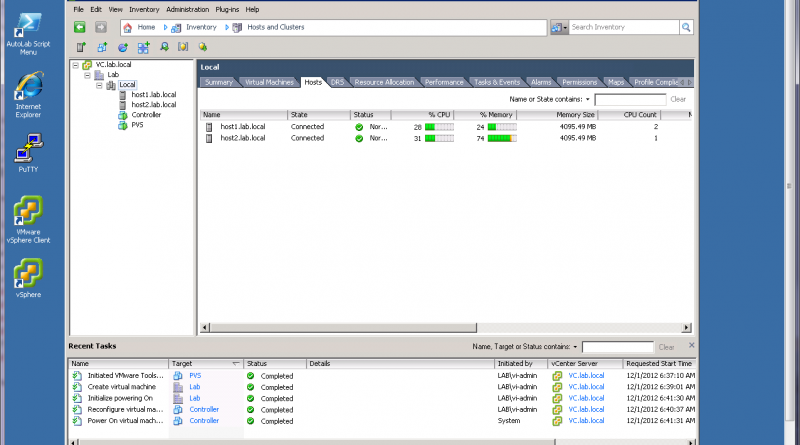
I have been running my home lab in Workstation for a good while now and it has served me well especially throughout my VCAP-DCA study. I am starting to do a bit more testing and proof-of-concept stuff with vSphere 5 and VDI so I need a little more. I have decided to invest in a beefy “whitebox” setup with ESXi 5.1 to run AutoLab.

So here is the new parts I put together. I chose the Shuttle SH67H3 barebone system since it supports up to 32GB RAM and the Intel i7. With some “Black Friday” deals at NewEgg.com I was able to put together a system that should work well for under $850.

Here is my new parts lists. The prices shown are the sale prices I paid and shipping was FREE.

Item Cost
Shuttle SH67H3 Intel Core i7/i5/i3 Intel H67 XPC Barebone $239.00
Intel Core i7-2600K Sandy Bridge 3.4GHz Quad-Core Desktop Processor $319.00
G.SKILL Ripjaws Z Series 32GB (4 x 8GB) 240-Pin DDR3 SDRAM Memory $109.00
Crucial M4 CT128M4SSD2 2.5″ MLC Internal Solid State Drive (SSD) $109.00
WD 500GB, 7200RPM, 16MB Cache SATA 6.0Gb/s Hard Drive $69.99

Here is a picture of the new gear after it was unpacked.

Read the rest of this entry →

vSphere 5 Network Coredump Collector

April 27, 2012 in DCA, vHersey, VMware

Since Auto Deploy allows for the creation fo diskless/stateless hosts there is a need to have a network service to store core dumps so that diagnostic information can be collected for support in the hopefully unlikely event of a host crash (PSOD). The vCenter Server Virtual Appliance includes the NetDump Service for this purpose. The Dump Collector server can also be installed on a Windows vCenter Server.

Configuring the NetDump coredump collector

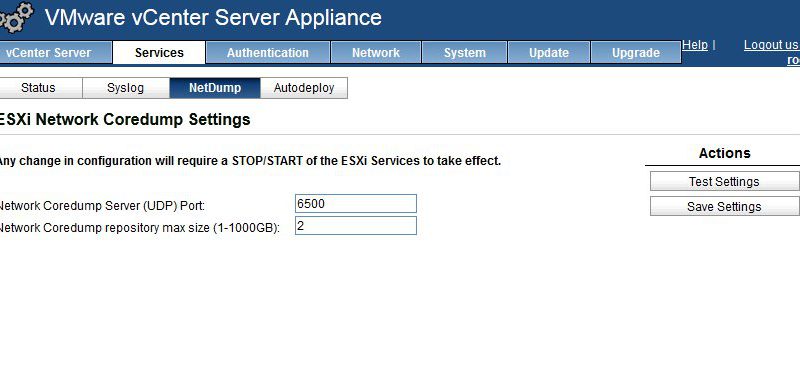
NetDump is installed and pre-configured on the vCenter Server Virtual Appliance. The UDP Port and Coredump repository maximum size can be set under Services -> NetDump

If changes are made to the port or repository size ESXi Services will need to be stopped and started.

The status of the NetDump service can be checked under Services -> Status.

Configuring the Host

The ESXi host can be configured to send coredumps to the NetDump coredump collector using esxcli or the configuration can be applied using Host Profiles.

You must specify the vmk interface to use (most likely your management network vmk), the IP address of the server running the NetDump service, and the UDP port number configured for the service.

esxcli system coredump network set –interface-name vmkX –server-ipv4 dumpcollectorIP –server-port 6500

Once the configuration parameters are set the network coredump must be enabled on the ESXi host.

esxcli system coredump network set –enable true

The current configuration of network coredump on the host can be displayed using get.

esxcli system coredump network get
Enable: true
Host VNic: vmkX
Network Server IP: 192.168.1.210
Network Server Port: 6500

If the ESXi host is an Auto Deploy hosts the network coredump will need to be enabled and configured using a Host Profile. Edit the Host Profile applied to Auto Deployed hosts and browse to Network Configurations -> Network Coredump Settings

Now for a test – CRASH!

To test the network coredump the ESXi host will need to be crashed. This article explains how to do this http://www.seancrookston.com/2012/01/09/forcing-a-kernel-dump-on-a-vsphere-host-the-purple-screen-of-death/ (DO NOT DO THIS ON A PRODUCTION HOST!!!)

To crash the host just SSH to the host or enter TSM from DCUI and:
Type vsish
Type set /reliability/crashMe/Panic

The host should PSOD (Purple Screen of Death).

Notice the line Starting network coredump from 192.168.1.205 to 192.168.1.210. The coredump is being transferred from the ESXi host to the NetDump collector. Once the transfer completes the message NetDump: Successful will be displayed.

The zdump file can be found on the vCenter Server Appliance in the /storage/core/netdumps/ip1/ip2/ip3/ip4 where ip1 – 4 are the IP address octets of the crashed host. For the host I crashed the directory was /storage/core/netdumps/192/168/1/205

Here is the VMware KB article on the ESXi Network Dump Collector for vSphere 5 with a lot more information including some network considerations and limitations (vmk cannot be on EtherChannel, LCAP, or vDS) of the NetDump collector.

vSphere Auto Deploy – Image Profile and Booting ESXi

April 24, 2012 in DCA, vHersey, VMware

The VCAP5-DCA Blueprint has objectives on working with ESXi Image Profiles and configuring VMware Auto Deploy which are both new features that were released with vSphere 5. As part of studying for the VCAP5-DCA beta exam I have been working on becoming more familiar with these features in my home lab. The vSphere Installation and Setup Documentation does a good job walking through the process of preparing a ESXi Software Image and setting up Auto Deploy.

Enable Auto Deploy on vCenter Server Virtual Appliance

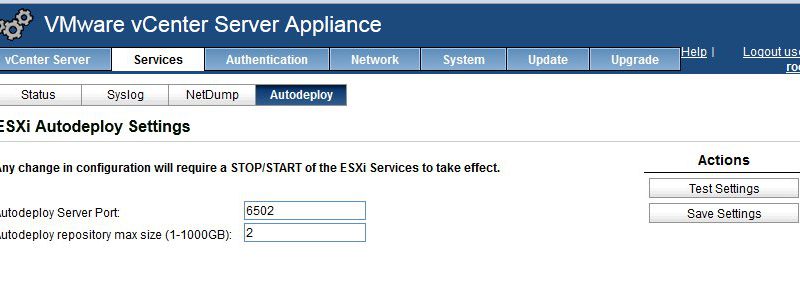
If you are running vCenter on a Windows Server you will need to install the Auto Deploy server on that server. If you are running the vCenter Server Appliance Auto Deploy needs to be enabled by logging in to the web management interface and navigating to Services -> Autodeploy.

To use the default port and repository size just click “Test Settings”, then click “Save Settings.” Then you must stop and start the ESXi services from the Services -> Status page. ESXi Autodeploy status should change to “Running”.

Once Auto Deploy is running it can be accessed from the Home menu in the vSphere Client. From here download the TFTP Boot Zip and note the BIOS DHCP File Name.

Set up DHCP and TFTP

I am using this DHCP server running on an XP VM to serve up DHCP for my lab environment. This DHCP server also has a built in TFTP server.

Configure the DHCP scope and add the BIOS DHCP File Name and the TFTP server IP address to the boot file parameter (this is done in the advanced options of the DHCP wizard if you use this DHCP Server). Unzip the Auto Deploy TFTP Boot File into the TFTP server root directory.

ESXi Image Profile

Adding an ESXi Software Image Profile is done using PowerCLI cmdlets. I downloaded the ESXi 5 zipped distribution from VMware.com and placed it in a directory on my C:\ drive.

The zip is then added as a Software Depot using PowerCLI.

Add-ESXSoftwareDepot c:\pathto\ESXi5.zip

Use Get-ESXImageProfile to display the available images in the depot.

Name                           Vendor          Last Modified   Acceptance Level
----                           ------          -------------   ----------------
ESXi-5.0.0-20111104001-stan... VMware, Inc.    10/13/2011 3... PartnerSupported
ESXi-5.0.0-20111104001-no-t... VMware, Inc.    10/13/2011 3... PartnerSupported

Then create a new deploy rule to use the Image Profile you want and apply it based on a host pattern. I am checking that the IP address (ipv4) is within the DHCP range set up for the hosts.

New-DeployRule -Name “ESXiDeployProfile” -Item ESXi-5.0.0-20111104001-standard -Pattern “ipv4=192.168.1.230-192.168.1.239″

The software will unzip and the packages will be uploaded to the Auto Deploy server.

Once the deploy rule is created it has to be activated.

Add-DeployRule -DeployRule ESXiDeployProfile

Auto Deploying ESXi

Since I am running my lab in Workstation I created an ESXi VM with no hard drives and added the necessary NICs for my environment (connections to management, storage, vMotion, and VM networks). The VM boots straight to network boot. The VM receives a DHCP address, the boot file from the TFTP server, and then begins booting from the Auto Deploy repository.

After the initial PXE boot the ESXi VM begins booting ESXi from the Image Profile based on the Deploy Rule.

When the host finishes booting it is added to the vCenter server inventory in maintenance mode.

Now a Host Profile and Answer File will need to be applied to configure the ESXi host for use in the environment. I will cover this in another post in the next couple days… and here it is Auto Deploy: Host Profiles and Answer Files.