Citrix XenServer, meh. Console Access, neat!

April 7, 2013 in Citrix, vHersey, VMware

Recently I have performed some discovery and analysis on a couple of production Citrix XenServer environments. Both of them hosting Citrix XenDesktop and both of them have been running beside a VMware vSphere environment. Not sure exactly why the design decision was made to introduce a separate hypervisor to an environment when XenDesktop is fully supported on VMware but what is done is done.

One of these environments is going through a network redesign and I am helping out with that. The network changes are going to require that some changes be made to the network configurations on the XenServers and this is what I was asked to help out with. I have had minimal exposure to XenServer and it was back a few years ago so I needed a quick refresh. I spun up XenServer in the lab for some quick testing.

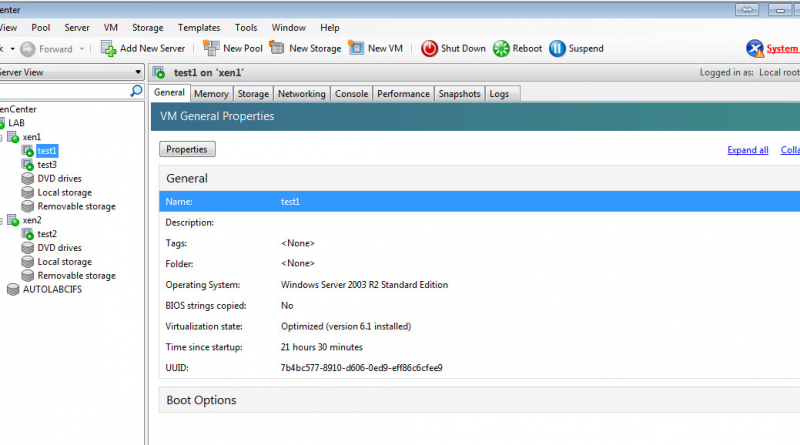
XenCenter-ScreenShot

Good news is the changes that need to be made are fairly simple and things should go without issue. Bad news is all VMs without XenServer Tools installed (a majority of them) will have to be powered down before the network connection can be changed. What!!! Powered down to disconnect a VM from one network and reconnect it to a different one, yep. Crap!

One feature of XenCenter that I do find extremely neat (and useful) is the host Console access through XenCenter. Just select the host and then the Console Tab and you are presented with a command line console for the select XenServer host.

XenCenter-CLIConsole

To start up the console GUI (similar to DCUI on ESXi) run xsconsole from the command line.

XenCenter-GUIConsole

XenServer was easy to install and XenCenter management is fairly intuitive. The host console access is a neat feature but overall I am not impressed (now I know why I stopped messing with this way back when). I am going to keep poking around in it just so I can be familiar with the ins and outs but as I tweeted yesterday – “XenServer installed in the home lab. So I tried it and it is OK, now give me back my vSphere.”

BTW my lab XenServer environment is running on ESXi. To do this you prepare and configure the VM just as you would to run nested ESXi (VM HW version 9, vhv.enabled = “TRUE”, and Guest OS: VMware ESXi 5.x).

XenonESXi

I <3 vSphere!

The Home Lab “Black Friday” Upgrade

December 1, 2012 in DCA, vHersey, VMware

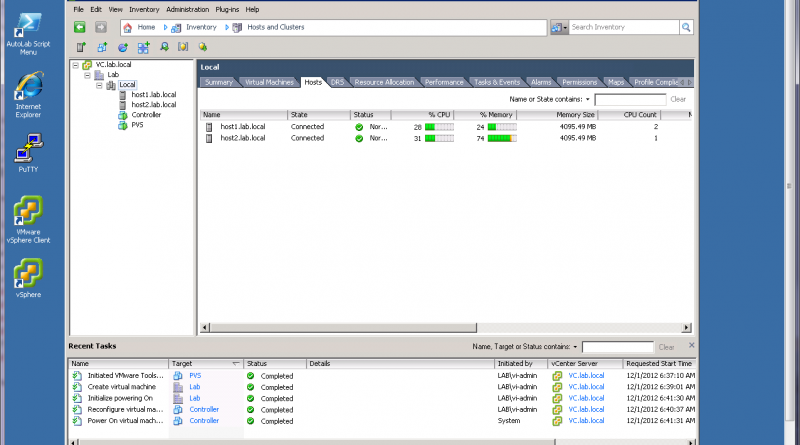
I have been running my home lab in Workstation for a good while now and it has served me well especially throughout my VCAP-DCA study. I am starting to do a bit more testing and proof-of-concept stuff with vSphere 5 and VDI so I need a little more. I have decided to invest in a beefy “whitebox” setup with ESXi 5.1 to run AutoLab.

So here is the new parts I put together. I chose the Shuttle SH67H3 barebone system since it supports up to 32GB RAM and the Intel i7. With some “Black Friday” deals at NewEgg.com I was able to put together a system that should work well for under $850.

Here is my new parts lists. The prices shown are the sale prices I paid and shipping was FREE.

Item Cost
Shuttle SH67H3 Intel Core i7/i5/i3 Intel H67 XPC Barebone $239.00
Intel Core i7-2600K Sandy Bridge 3.4GHz Quad-Core Desktop Processor $319.00
G.SKILL Ripjaws Z Series 32GB (4 x 8GB) 240-Pin DDR3 SDRAM Memory $109.00
Crucial M4 CT128M4SSD2 2.5″ MLC Internal Solid State Drive (SSD) $109.00
WD 500GB, 7200RPM, 16MB Cache SATA 6.0Gb/s Hard Drive $69.99

Here is a picture of the new gear after it was unpacked.

Read the rest of this entry →

Need Help!!! XenApp Streaming Profile for EMC ApplicationXtender Desktop 6.5

May 20, 2011 in Citrix

For the past week or so I have been trying to create a working Citrix XenApp streaming application profile for EMC’s ApplicationXtender Desktop 6.5 Document Manager and the Data Source Selector that goes with it.

The streaming profile is created using a newly cloned Windows XP SP3 VM joined to our domain with the latest and greatest updates applied with Citrix Streaming Profiler Version 6.0.2.14

When running the New Profile Wizard and installing the application all seems well. I am able to run the Data Source Selector application to set up the data source and then run the Document Manager to test access during profile creation. The new profile is built, saved to a network share, and published as a “Streamed to client” application type from the Delivery Service Console.

When I try running the streamed app I receive this error:

This application has failed to start because the application configuration is incorrect. Reinstalling the application may fix the problem.

%#$*!

An error is also generated in the Windows Application log:

Source: Citrix offline plug-in
Event ID: 4112
Description: Launch of application c:\program files\xtendersolutions\content management\aexdsselector.exe failed. Trying ICA fallback……

No real help in the logs.

I have created and deployed a number of other streaming application profiles that are working without issue, this one just has me stumped. I have been searching for a solution on Google, on the Citrix support forums, and on EMC Powerlink without success.

Being able to deliver this as a streaming app is key piece of a project we are working on. If anyone out there has any help, hints, or ideas they will be much appreciated.

Thanks in advance…