Cloned ESXi Duplicate vmk0 MAC Addresses

August 24, 2012 in vHersey, VITA, VMware

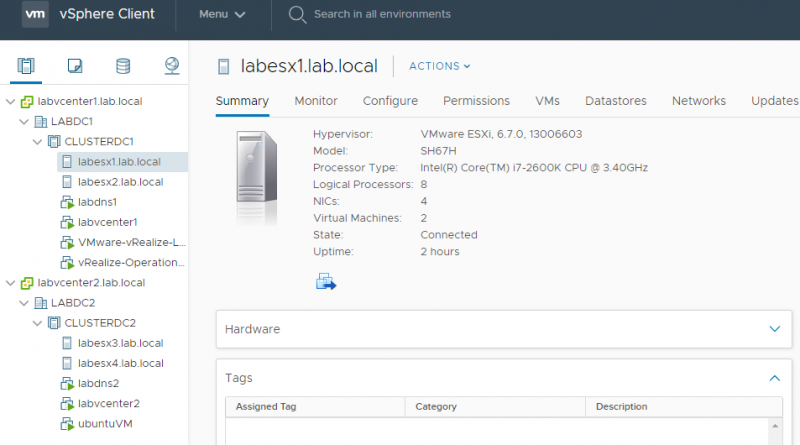
For the ICM class there are 12 different lab environments with 2 virtual ESXi host each. To deploy these ESXi hosts I clone them from a master ESXi template that is preconfigured and has a local datastore with all the necessary class files and software. After I deploy each virtual machine I test connectivity and before last nights class everything seemed fine.

Once the class started accessing the lab environments we started seeing some network issues. Connections to the lab ESXi hosts were being dropped every few seconds, restarting the management networks would bring back connectivity but only for a short time. The issue turned out to be that each of the 24 hosts had the same MAC address assigned to vmk0 – oops!

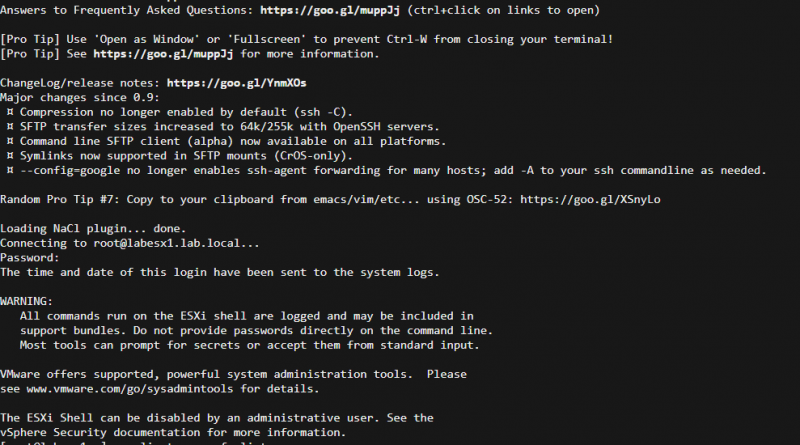
The vmk0 is a virtual interface and a MAC address is generated for it when it is created. When the ESXi template is cloned the vmknic and its configuration (Name, MAC, MTU, and IP settings) are also cloned. Accessing ESXi Shell and running esxcfg-vmknic -l will list the configured vmknics and the configurations (including the MAC) of each:

There are 2 ways to correct this in the cloned ESXi hosts. One way is to delete and recreate the vmk interface. The other is to set the vmknics to use the hardware MAC address of their physical uplink NIC. The process for both of these options can be found in this kb article.

For the lab environment I set the vmknic MAC to follow the hardware MAC.

esxcfg-advcfg -s 1 /Net/FollowHardwareMac

After setting this and rebooting the vmknic (vmk0) now uses the MAC address of its physical uplink nic.

Not sure why this issue did not show up during testing but it should be fixed now.

vSphere 5 Network Coredump Collector

April 27, 2012 in DCA, vHersey, VMware

Since Auto Deploy allows for the creation fo diskless/stateless hosts there is a need to have a network service to store core dumps so that diagnostic information can be collected for support in the hopefully unlikely event of a host crash (PSOD). The vCenter Server Virtual Appliance includes the NetDump Service for this purpose. The Dump Collector server can also be installed on a Windows vCenter Server.

Configuring the NetDump coredump collector

NetDump is installed and pre-configured on the vCenter Server Virtual Appliance. The UDP Port and Coredump repository maximum size can be set under Services -> NetDump

If changes are made to the port or repository size ESXi Services will need to be stopped and started.

The status of the NetDump service can be checked under Services -> Status.

Configuring the Host

The ESXi host can be configured to send coredumps to the NetDump coredump collector using esxcli or the configuration can be applied using Host Profiles.

You must specify the vmk interface to use (most likely your management network vmk), the IP address of the server running the NetDump service, and the UDP port number configured for the service.

esxcli system coredump network set –interface-name vmkX –server-ipv4 dumpcollectorIP –server-port 6500

Once the configuration parameters are set the network coredump must be enabled on the ESXi host.

esxcli system coredump network set –enable true

The current configuration of network coredump on the host can be displayed using get.

esxcli system coredump network get
Enable: true
Host VNic: vmkX
Network Server IP: 192.168.1.210
Network Server Port: 6500

If the ESXi host is an Auto Deploy hosts the network coredump will need to be enabled and configured using a Host Profile. Edit the Host Profile applied to Auto Deployed hosts and browse to Network Configurations -> Network Coredump Settings

Now for a test – CRASH!

To test the network coredump the ESXi host will need to be crashed. This article explains how to do this http://www.seancrookston.com/2012/01/09/forcing-a-kernel-dump-on-a-vsphere-host-the-purple-screen-of-death/ (DO NOT DO THIS ON A PRODUCTION HOST!!!)

To crash the host just SSH to the host or enter TSM from DCUI and:
Type vsish
Type set /reliability/crashMe/Panic

The host should PSOD (Purple Screen of Death).

Notice the line Starting network coredump from 192.168.1.205 to 192.168.1.210. The coredump is being transferred from the ESXi host to the NetDump collector. Once the transfer completes the message NetDump: Successful will be displayed.

The zdump file can be found on the vCenter Server Appliance in the /storage/core/netdumps/ip1/ip2/ip3/ip4 where ip1 – 4 are the IP address octets of the crashed host. For the host I crashed the directory was /storage/core/netdumps/192/168/1/205

Here is the VMware KB article on the ESXi Network Dump Collector for vSphere 5 with a lot more information including some network considerations and limitations (vmk cannot be on EtherChannel, LCAP, or vDS) of the NetDump collector.

vSphere Auto Deploy – Image Profile and Booting ESXi

April 24, 2012 in DCA, vHersey, VMware

The VCAP5-DCA Blueprint has objectives on working with ESXi Image Profiles and configuring VMware Auto Deploy which are both new features that were released with vSphere 5. As part of studying for the VCAP5-DCA beta exam I have been working on becoming more familiar with these features in my home lab. The vSphere Installation and Setup Documentation does a good job walking through the process of preparing a ESXi Software Image and setting up Auto Deploy.

Enable Auto Deploy on vCenter Server Virtual Appliance

If you are running vCenter on a Windows Server you will need to install the Auto Deploy server on that server. If you are running the vCenter Server Appliance Auto Deploy needs to be enabled by logging in to the web management interface and navigating to Services -> Autodeploy.

To use the default port and repository size just click “Test Settings”, then click “Save Settings.” Then you must stop and start the ESXi services from the Services -> Status page. ESXi Autodeploy status should change to “Running”.

Once Auto Deploy is running it can be accessed from the Home menu in the vSphere Client. From here download the TFTP Boot Zip and note the BIOS DHCP File Name.

Set up DHCP and TFTP

I am using this DHCP server running on an XP VM to serve up DHCP for my lab environment. This DHCP server also has a built in TFTP server.

Configure the DHCP scope and add the BIOS DHCP File Name and the TFTP server IP address to the boot file parameter (this is done in the advanced options of the DHCP wizard if you use this DHCP Server). Unzip the Auto Deploy TFTP Boot File into the TFTP server root directory.

ESXi Image Profile

Adding an ESXi Software Image Profile is done using PowerCLI cmdlets. I downloaded the ESXi 5 zipped distribution from VMware.com and placed it in a directory on my C:\ drive.

The zip is then added as a Software Depot using PowerCLI.

Add-ESXSoftwareDepot c:\pathto\ESXi5.zip

Use Get-ESXImageProfile to display the available images in the depot.

Name                           Vendor          Last Modified   Acceptance Level
----                           ------          -------------   ----------------
ESXi-5.0.0-20111104001-stan... VMware, Inc.    10/13/2011 3... PartnerSupported
ESXi-5.0.0-20111104001-no-t... VMware, Inc.    10/13/2011 3... PartnerSupported

Then create a new deploy rule to use the Image Profile you want and apply it based on a host pattern. I am checking that the IP address (ipv4) is within the DHCP range set up for the hosts.

New-DeployRule -Name “ESXiDeployProfile” -Item ESXi-5.0.0-20111104001-standard -Pattern “ipv4=192.168.1.230-192.168.1.239″

The software will unzip and the packages will be uploaded to the Auto Deploy server.

Once the deploy rule is created it has to be activated.

Add-DeployRule -DeployRule ESXiDeployProfile

Auto Deploying ESXi

Since I am running my lab in Workstation I created an ESXi VM with no hard drives and added the necessary NICs for my environment (connections to management, storage, vMotion, and VM networks). The VM boots straight to network boot. The VM receives a DHCP address, the boot file from the TFTP server, and then begins booting from the Auto Deploy repository.

After the initial PXE boot the ESXi VM begins booting ESXi from the Image Profile based on the Deploy Rule.

When the host finishes booting it is added to the vCenter server inventory in maintenance mode.

Now a Host Profile and Answer File will need to be applied to configure the ESXi host for use in the environment. I will cover this in another post in the next couple days… and here it is Auto Deploy: Host Profiles and Answer Files.

PowerCLI Script to Shutdown My Home Lab

December 14, 2011 in vHersey, VMware

Ran across a PowerCLI script that can be used to shutdown your virtual infrastructure written by Alan Renouf and thought it would be pretty handy to use to automate shutting down my home lab.

The original script attempts to shutdown VMs “cleanly” using Shutdown-VMGuest. Shutdown-VMGuest attempts to shutdown the VMs OS and requires that VM Tools be installed and running. Most of the VMs in my lab are running Damn Small Linux (DSL) and do not have VM tools installed so this would not work and it would shutdown the host without shutting down the VMs first. Not really a big deal but I wanted to make the process just a bit cleaner.

I changed the script to first shutdown VMs that are powered on and have VM tools running. It then waits $waittime in seconds and uses Stop-VM to forcefully power off any remaining powered on VMs. As in the original script it then waits $waittime or until no VMs are powered on to shutdown the ESXi hosts.

Connect-VIServer MyVIServer

# Set the amount of time to wait before assuming the remaining powered on guests are stuck
$waittime = 60 #Seconds

# Get All the ESX Hosts
$ESXSRV = Get-VMHost

# For each of the powered on VMs with running VM Tools
Foreach ($VM in ($ESXSRV | Get-VM | Where {$_.PowerState -eq "poweredOn" -and $_.Guest.State -eq "Running"})){
    # Shutdown Guest
    write-host "Shutting down $VM"
    $VM | Shutdown-VMGuest -Confirm:$false
}

Write-host "Pausing for $waittime seconds to allow VMs to shutdown cleanly"
sleep $waittime

#Force Poweroff of any VMs still running
Foreach ($VM in ($ESXSRV | Get-VM | Where {$_.PowerState -eq "poweredOn"})){
      # Power off Guest 
      write-host "Powering off $VM"
      $VM | Stop-VM -Confirm:$false
}

$Time = (Get-Date).TimeofDay
do {
    # Wait for the VMs to poweroff
    sleep 1.0
    $timeleft = $waittime - ($Newtime.seconds)
    $numvms = ($ESXSRV | Get-VM | Where { $_.PowerState -eq "poweredOn" }).Count
    Write-host "Waiting for shutdown of $numvms VMs or until $timeleft seconds"
    $Newtime = (Get-Date).TimeofDay - $Time
    } until ((@($ESXSRV | Get-VM | Where { $_.PowerState -eq "poweredOn" }).Count) -eq 0 -or ($Newtime).Seconds -ge $waittime)

# Shutdown the ESX Hosts
Write-host "Shutting down hosts"
$ESXSRV | Foreach {Get-View $_.ID} | Foreach {$_.ShutdownHost_Task($TRUE)}

Write-Host "Shutdown Complete"

To use the script just change MyVIServer in line 1 to be the IP address or hostname of you vCenter server. Set $waittime at line 4 to be the number of seconds to wait before forcefully powering off VMs. The $waittime may need to be increased depending on the speed of your lab and the number of VMs that are shutting down. Run the script as you would any other PowerCLI script.

It is probably not completely necessary to force the shutdown of all VMs before shutting down the hosts. They will be shutdown when the host they are running on is shutdown. It just gave me some PowerCLI practice and it works.

Be EXTREMELY careful with this script. When you run it all VMs and Host managed by the vCenter you are connecting to will be shutdown!

DO NOT RUN THE SCRIPT AGAINST YOUR vCENTER SERVER IF YOU DO NOT WANT TO SHUTDOWN VMs!

Thanks again to Alan Renouf for the original script which can be found at http://www.virtu-al.net/2010/01/06/powercli-shutdown-your-virtual-infrastructure/.

If you found this script useful or have other ideas for improvements post to the comments.

My Home VMware Lab

December 8, 2011 in vHersey, VMware

Several people have asked me about what I am using for a lab so I put together this post about the lab I used to study for the VCP 5 exam. I also used this lab set up when studying for my VCAP4-DCA exam.

I run my lab in VMware Workstation 8 on a consumer desktop I picked up at BestBuy for right around $350. The desktop is a lower end ASUS model CM1630 with an AMD Athlon II x2 220 2.80 GHz processor running Windows 7 Home Premium. I spent less than $75 to upgraded the memory to 16 GB. Takes a little while to get everything booted up, but once the environment is up things run fairly well. When the vCenter Server Appliance, the vSphere Management Assistant appliance, and two ESXi hosts running several (3-5) nested DSL VMs are up they consume about 11 GB of the available RAM.

Here is a diagram of the way I have set up my lab in Workstation.

Read the rest of this entry →

vSphere 5 host stops sending syslog messages

October 25, 2011 in DCA, vHersey, VMware

I had some maintenance to do on my central syslog server and the server was down for about 30 minutes or so. When the syslog server was back online it was no longer logging syslog messages from my vSphere hosts. First thing I did was check to see if I was receiving syslog messages from the hosts using tcpdump.

tcpdump -i eth0 -A -s 0 udp port 514 and host ESXiHostIpAddress

Nothing.

I thought maybe something changed with the maintenance/upgrade that caused the issue but a quick search resulted in this vSphere 4.x article in the VMware KB. I did not find anything on this issue in vSphere 5 but the 4.x article pointed me in the right direction.

I checked the logging in the Syslog.global.logDir for the hosts and logging had stopped there also.

To correct this you simply have to reload the ESXi syslog service using esxcli.

esxcli –server HostIpAddress –username UserName –password PassWord system syslog reload

Once syslog is reloaded run tcpdump on the system again and you should see syslog messages from the host. I also verified that syslog messages were being logged to Syslog.global.logDir.

I did some quick testing and if I take the syslog server down even briefly (no more than a minute) I have to reload syslog on each of the hosts before log messages a generated.

All is well now. Just have to remember to reload syslog on the ESXi hosts anytime I take down the syslog server.

Anyone know why this happens or if there is a way to prevent it from happening (other than never taking down the syslog server)?

Another vSphere 5 Upgrade Gotcha – Syslog

October 5, 2011 in vHersey, VMware

I had my vSphere 4.1 ESXi hosts set up to send logs to a central syslog server. After the upgrade to vSphere 5 this was no longer working. Did some checking and the syslog configurations that were set in 4.1 are gone and had to be reconfigured.

In vSphere 5 the remote syslog host is configured by setting Syslog.global.logHost

This setting is found in the Host Configuration -> Advanced Settings -> Syslog

The remote server for Syslog.global.logHost is specified in this format protocol://remotesyslogip:port (udp://10.10.10.10:514 for syslog using udp on port 514 to host 10.10.10.10).

It can also be set from the VMA using “esxcli system syslog config set –loghost=protocol://remoteipaddress:port”

Here is the VMwareKB on Configuring syslog for ESXi 5.0.

But wait – there’s more!

After setting up the remote syslog host you have to enable the firewall rule to allow syslog traffic outbound (port 514 tcp or udp). This can be done on the host from the vSphere client in Configuration -> Security Profile -> Firewall Properties.

Good luck.

Access the ESXi Direct Console User Interface (DCUI) over SSH

August 1, 2011 in vHersey, VMware

I don’t think I have ever needed to do this in a production environment, but it is helpful for training/teaching when running virtual ESXi hosts in the lab.

First you need to enable and start Remote Tech Support (SSH). This is done for the ESXi Host in Configuration -> Software -> Security Profile


Use an SSH client (putty) to connect to the ESXi host.

Once logged in simply run dcui

~ # dcui

Look familiar? Want to change the color to look like the console – check out this post.

To exit DCUI and return to the prompt use CTRL-C