Morning vHealth Email From vSphere Health Check Report Script

December 30, 2011 in vHersey, VMware

The VMware vSphere Health Check Report is a free script written by @lamw (Check out his site virtuallyGhetto for some other handy scripts) that generates an HTML report on the health of a vSphere 4.x or 5.x environment. The report script is well documented, easily installed and configured, and can be downloaded from here: http://communities.vmware.com/docs/DOC-9842

I run the VMware vSphere Health Check Report script from my vSphere Management Assistant 5.0 (vMA). Each day at 6:00 AM the script is run to generate a nice HTML report of my vSphere environment and then email it to me.

Read the rest of this entry →

vSphere 5 High Availability (HA) Configuration and Demonstration Video

December 9, 2011 in vHersey, VMware

Back in 2006 VMware HA was the technology that really sold me on virtualizing production workloads. I thought virtualization was a pretty neat technology that was well suited for testing and development but in a production environment it still seemed like you were putting all your eggs in one basket. A pre-sales VMware Engineer did a demo of HA by shutting down a running host to simulate a failure. Within a minute or so the VMs running on the host rebooted on another host and I have been hooked ever since. Forget about server consolidation, hardware cost savings, power and cooling savings, and such; not having to drive into the office in the middle of the night to reboot a hung server – for me at that time HA was game changing awesomeness!

Anyway I was just messing around last night with my lab trying to come up with some teaching tools for the VMware classes at TCC next semester. I came up with this screen capture video that demonstrates the configuration of VMware HA and then demonstrates a host failure. Similar to the demo that pre-sales Engineer did many years ago. For my first shot at it (the screen capture not HA configuration ;) ) I think it came out OK. If you are going to view it full screen it looks best if you change the settings to 720p.

I may work on adding narration at some point but for now I figure I can just narrate it in class. Anyone know how to force the video to be 720p when it is embeded??? I plan do several more videos to demonstrate some other VMware technologies for the TCC VMware classes.

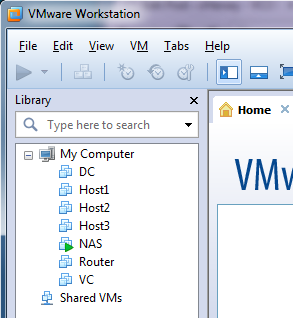
This also demonstrates what you can do in a VMware Workstation lab. The ESXi hosts and vCenter are running in Workstation 8. The VMs are running nested on ESXi host. Virtual virtual!!!

Would like to hear what others think and would appreciate any tips on creating these type of videos. Just leave me a comment.

TGIF!!! Have a great weekend!!!

My Home VMware Lab

December 8, 2011 in vHersey, VMware

Several people have asked me about what I am using for a lab so I put together this post about the lab I used to study for the VCP 5 exam. I also used this lab set up when studying for my VCAP4-DCA exam.

I run my lab in VMware Workstation 8 on a consumer desktop I picked up at BestBuy for right around $350. The desktop is a lower end ASUS model CM1630 with an AMD Athlon II x2 220 2.80 GHz processor running Windows 7 Home Premium. I spent less than $75 to upgraded the memory to 16 GB. Takes a little while to get everything booted up, but once the environment is up things run fairly well. When the vCenter Server Appliance, the vSphere Management Assistant appliance, and two ESXi hosts running several (3-5) nested DSL VMs are up they consume about 11 GB of the available RAM.

Here is a diagram of the way I have set up my lab in Workstation.

Read the rest of this entry →

PowerCLI to Check for VMware ToolsOK

November 30, 2011 in VMware

Had an issue last night with setting a VM’s IP Address, DNS, and name using Invoke-VMScript after powering on the VM. The Invoke-VMScript would timeout because VMware Tools was not started. I tried using sleeps in the script to pause the script long enough so Tools would start. I could not get this to work consistently so I did some searching around and found this bit of PowerCLI code that loops until the status of VMware Tools returns OK.

write-host “Waiting for VM Tools to Start”
do {
$toolsStatus = (Get-VM $vm | Get-View).Guest.ToolsStatus
write-host $toolsStatus
sleep 3
} until ( $toolsStatus -eq ‘toolsOk’ )

Exactly what I needed it to do. Will probably enhance it to update tools if $toolsStatus is equal to ‘toolsOld’ but not sure that will be necessary I am usually pretty good at keeping the VM tools installs up to date in my templates.

I cannot find the source where I found this, it was part of another script and I should have saved the URL. If this is your snippet – THANKS!

Got an update from Alan Renouf (@alanrenouf) from http://www.virtu-al.net/

“You might want to check out (Get-VM $vm).extensiondata.Guest.ToolsStatus rather than (Get-VM $vm | Get-View).Guest.ToolsStatus it should give you the same results but be slightly quicker. ”

Thanks for the tip Alan!

VMware Training at a School Near You – VITA

October 21, 2011 in vHersey, VMware

There was a brief discussion on the VITA program during this weeks ProfessionalVMware.com Brownbag with David Davis and there seemed to be a fair bit of interest in it so I put together a post.

If you are looking to fulfill the training requirements necessary to obtain your VCP but you don’t have the time (or cash) to dedicate to a straight week of VMware instructor led training check with your local community college or technical school they may participate in the VMware IT Academy Program. The VMware IT Academy Program or VITA allows qualified schools to offer VMware training.

Here is the program overview from the VITA web site:
The VMware IT Academy Program is designed to introduce students to VMware technologies and equip them with VMware technical skills to compliment their chosen fields of study. VMware will provide selected academic institutions with course materials developed by VMware for this purpose. By instituting this program, VMware seeks to create a collaborative relationship with academic institutions whereby their students may obtain the VMware Certified Professional (VCP) status and other VMware certifications.

Tidewater Community College (TCC), one of the local community college in my area, offers a Virtualization Career Studies Certificate program that includes two VMware classes. The class ITN 254 is the equivalent to the VMware vSphere 4: Install, Configure, Manage training that is required to obtain the VCP. The advanced class ITN 255 is a semester long and includes three VMware classes; VMware vSphere 4: Manage Availability, VMware vSphere 4: Manage Scalability, and VMware vSphere 4: Troubleshooting. TCC may have vSphere 5 classes available as early as the summer 2012 semester.

I took the ITN 254 class in the Fall semester 2010 and obtained my VCP shortly after completing the class. I took ITN 255 during the Winter semester 2011 and after a month or so of hands-on practice took and passed my VCAP-DCA exam. For the last couple semesters I have been helping out with the TCC lab environment and assisting with the ITN 254 class instruction on a volunteer basis. Both ITN 254 and ITN 255 are excellent classes with a lot of good hands-on lab experience.

So if you are looking for VMware training check with your local school. For the cost of a few credit hours and a few hours of your time each week you can complete the VMware training required for VCP. Here is a list of schools that participate in the VITA program.

VCAP-DCA Prep Resources and Thanks

July 12, 2011 in vHersey, VMware

Last Friday I received my VCAP-DCA Exam results from VMware and I PASSED. It took 8 business days to get my results and when I left the exam I did not have a great feeling about my performance. The exam was tough and the time limit makes it brutal. I continued to prepare for the exam up until I received the results fearing that I was going to have to sit for it again. What a relief.

Since that is behind me now I am taking a break for a few weeks to enjoy the summer then I am on to preparing for the VCAP-DCD exam.

Here are some resources I used to prepare for the exam and I want to just say “Thank You” to those that have taken the time to provide them.

These study guides were extremely valuable resources when preparing. Each one of them is very well put together following the objectives of the VCAP-DCA Exam Blue Print providing detailed notes and examples for each objective and sub-objective. Many thanks go out to these folks for taking the time to put these excellent study guides together.

The ProfessionalVMware.com BrownBags which are organized by @cody_bunch (<- Follow him) were also a great resource. The BrownBags are held every other week and there is an archive of previous sessions here. You can sign up to participate in future BrownBags here. Cody, I am sure these take a lot to put together and I appreciate you taking the time to do it. They provide a lot of good information. The PowerCLI 101 session was great and very helpful.

I also want to thank my Instructor from TCC, Mr. Guess, for allowing me to use the lab environment there to practice. My lab at work is not what it should be and my home lab runs in VMware Workstation (I am working to build a proper home lab). I was able to get a lot of practice with vCenter Heartbeat, vShield Zones, and Fault Tolerance which I do not work with day to day. If you are looking to get your VCP (or VCAP-DCA) TCC is part of the VMware Academy and offers the Install, Configure, and Manage Class to meet the VCP training requirements. They also offer the Advance Troubleshooting, Performance, and Security classes. It is a good program and if you are in the Tidewater area and interested in virtualization check it out. More information on the Virtualization program at TCC can be found here. Information on the Virtualization Career Studies certificate can be found here.

Thanks again to everyone for providing these resources. They were a tremendous help in preparing for the exam!

To anyone that is preparing for the VCAP-DCA – have fun and good luck with it. Practice, practice, practice and when you sit for the exam try not to focus on the clock. Time management is important but do not let it consume your focus – don’t rush. Read the lab questions carefully and pay attention to detail when you are working through the labs.

Hersey

Boomerang Fling – Handy Little App

July 8, 2011 in vHersey, VMware

Check out Boomerang, a handy little piece of fling from VMware Labs http://labs.vmware.com/flings/boomerang

It runs in the windows taskbar and allows you to add ESX/i and vCenter Servers to do some basic management of guest VMs without having to open the vSphere client. Using the app you can power off/on, suspend, or reset VMs. The app also allows you to quickly connect to a VM’s console using the VMware Remote Console. You can browse a list of VMs in inventory or you can “Favorite” VMs to keep them at the top of the list for quick access.

Couple of minor things that would be nice in a future release. First off the app shows templates as guests, would be nice to filter these out (especially if you have a number of templates) – this is easy to overcome by setting VMs you access frequently as Favorites. The second bigger issue is there is no quick way to tell what VMs are powered on or off, making the VM link a different color or adding a small image to indicate power would be extremely helpful.

Still pretty handy for quick access to VMs without needing to open the full vSphere Client. Download the Boomerang fling from here.

(The image above was borrowed from the Boomerang Fling page)

VMware vSphere Client on the iPad Using Citrix XenApp

May 23, 2011 in Citrix, iPad Apps, VMware

I published the vSphere Client using Citrix XenApp to make it available to administrators on any machine they happened to log into on our network.  There have been multiple occasions where I have been at a branch location and needed to access the vSphere client.  Usually I just RDP to my desktop and access it from there, but since every machine in our environment is already set up to launch XenApp published apps I figured why not publish the vSphere client.

The vSphere Client is delivered like any other application.  Just install the client on one (or more) of  the XenApp Application Servers in your farm and then publish it as an “Accessed from a server” application from the Citrix Services Delivery Console. You can also install any plugins you want delivered with the client and they will be available.

Once the vSphere Client is published it will also be available using the Citrix Receiver app on an iPad. Just tap the icon in Citrix Receiver and the VMware vSphere Client login opens.  Since you are logging into the XenApp server Windows Session Credentials can be used.

Read the rest of this entry →

Awesome HA and DRS Audit Script Based on the HA/DRS Technical Deepdive

May 17, 2011 in VMware

If you do not have a copy of VMware vSphere 4.1 HA and DRS Technical Deepdive by @DuncanYB and @FrankDenneman then go here, buy it, and read it cover to cover. The book covers everything VMware High Availability (HA) and the Distributed Resource Scheduler (DRS) (and then some!).

Alan Renouf, co-author of another must have book – VMware vSphere PowerCLI Reference: Automating vSphere Administration, has put together a nice HA and DRS Audit PowerCLI script that can be used to gather information and check for best practices on your HA/DRS cluster based on the information from the Technical Deepdive book.

The script is run against your vCenter and creates a nicely formatted HTML report with all the HA/DRS related details of each cluster managed by vCenter. This gives you a detailed overview of your environment and the configuration of HA and DRS.

As of right now the script is based on the information contained in just the first 50 pages of the HA and DRS Deepdive. Alan Renouf is promising updates to the script as he works his way through the book.

Go here to download the HA and DRS Audit script.

Free Compliance Checker for vSphere Test Drive

May 16, 2011 in VMware

The free Compliance Checker for vSphere checks your environment against the security guidelines from the vSphere 4.0 Hardening Guide.

It checks up to 5 ESX/ESXi host for free.  Just enter your vCenter server name or the IP address of an individual ESX/ESXi host and it performs the assessment.  If you have more than 5 ESX/ESXi hosts in your environment the compliance checker only performs the assessment on the first 5.

The Compliance Checker generates a nice HTML report that displays the compliance rule that was checked and whether the host passed or failed the check according to best practices.

Each rule references a code from the Hardening Guide so that you can look up the recommendations and remediation steps.

Nice free utility, very useful in checking small (<5 host) environments for security hardening best practices.

Download the Free Compliance Checker for vSphere here.